For the best XRHealth experience, make sure your headset is connected to Wi‑Fi. This allows you to join remote clinician sessions, receive updates, and sync your data to MyXRHealth.
How to connect to Wi‑Fi
1. Go to the Launcher screen
If you are on any other screen, press the Meta button on your right controller and select "Quit" to return to the Launcher.
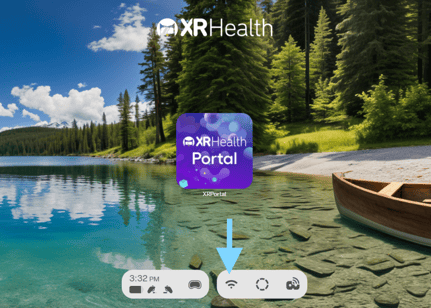
2. Click the Wi‑Fi toolbar button
Open the Wi‑Fi panel from the toolbar.
3. Select your network
Choose your Wi‑Fi network from the list.
4. Enter your password
Click on the input field next to "Password." A keyboard will pop-up near the bottom of your screen. You can now type your network credentials.
5. Join the network
Once the password is entered, click "Connect".