What is NeuroVirt?
NeuroVirt is a medical application (FDA‑cleared) that uses virtual reality to help you practice movement, balance, and coordination as part of your rehabilitation.
You will use simple games to move your arms, hands, or legs in a safe and guided way, while your therapist supports you.
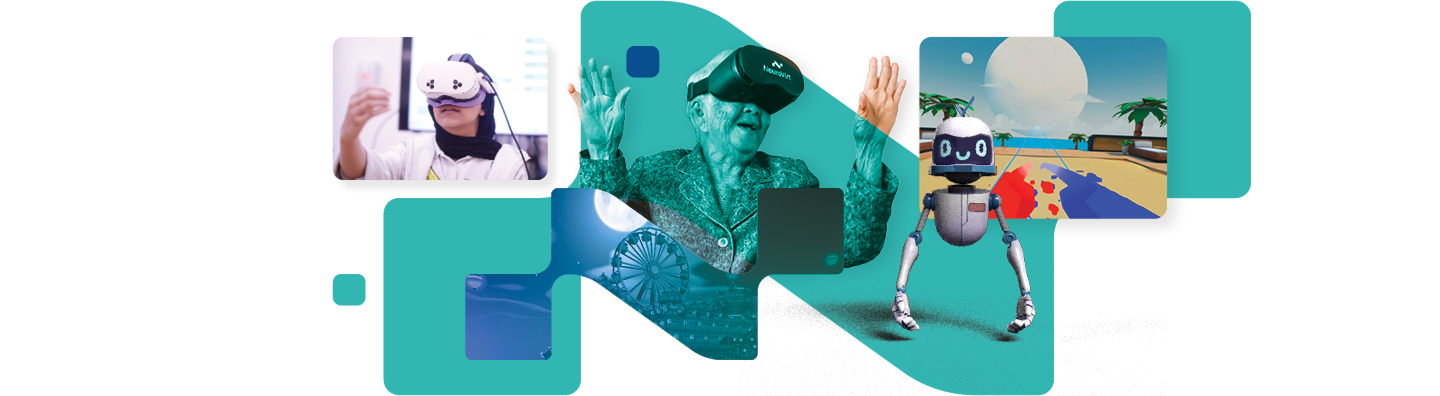
Before you start
⚠️ Important: Always begin your session in a seated position, unless your therapist instructs you otherwise.
- Make sure you have a space that is free of obstacles.
- Make sure you feel comfortable before starting.
- If you feel pain, dizziness, or discomfort at any time, tell your therapist.
How to use NeuroVirt
Step 1: Using your gaze to select
NeuroVirt is mainly controlled using your eyes.
- You will see an orange dot on the screen – this shows where you are looking.
- To choose a button, look at it and keep looking.
- When the selection circle fills up, the button will be selected automatically.
Step 2: Using your hands or controllers
- Some games use hand controllers.
- Other games use hand tracking only.
- When a game uses hand tracking, you will be asked to put the controllers aside.
The game will always show clear instructions so you know what to do.
Choosing a game
- Choose whether you want to work on upper‑limb (arms and hands) or lower‑limb (legs and balance) activities.
- A list of games will appear.
- Each game has an icon showing whether it uses hands, controllers, or leg movement.
- Look at the game you want to play to select it.
Before each game begins, you will see a short tutorial and practice phase that explains how to play.
During the game
- Follow the instructions you see on the screen.
- Move only as much as you feel comfortable.
- The game may slow down or become easier if you get tired.
- You can stop or take a break at any time.
Exiting a game or ending a session
To go back to the game list
- Look at the question mark icon (?) at the top of the screen.
- Select Return to Library.
To finish your session and exit NeuroVirt
- Look at the question mark icon (?).
- Select End Session.
- You will see a summary of the games you played.
- Look to the left to see your Rewards Wall, showing your achievements.
- Select Exit to leave the app.
Making sure Hand Tracking is enabled
Some NeuroVirt games use Hand Tracking (without controllers). If Hand Tracking is not working, follow these steps:
- Go to the VR Launcher screen.
- Select the three-dot (⋯) button in the bottom bar.
- Select the gear icon (⚙️) to open Settings.
- In the right-hand menu, select Movement Tracking.
- If Hand Tracking is set to False, switch the toggle to True.
- Press the Meta button on the right controller to return to the main screen.
Hand Tracking should now be enabled.
Tips for a good session
- Wear comfortable clothing
- Sit upright and relaxed
- Move slowly and smoothly
- Take breaks when needed
- Don’t worry about mistakes – the games are for practice
Remember
NeuroVirt is here to help you practice movement in a safe, supportive, and engaging way. Your therapist will guide you and adjust the exercises to fit your needs.
If something feels uncomfortable or confusing, always ask your therapist for help.